> ## Documentation Index
> Fetch the complete documentation index at: https://typecast.ai/docs/llms.txt
> Use this file to discover all available pages before exploring further.
# Zapier
[Zapier](https://zapier.com/) is the most popular workflow automation platform. With the Typecast integration, you can convert text to speech automatically - no coding required!
## What You Can Do
With the Typecast Zapier integration, you can:
- **Generate voiceovers** from any text automatically
- **Choose from 600\+ voices** with different genders, ages, and styles
- **Apply emotions** (happy, sad, angry, whisper, and more)
- **Use Smart Emotion** for context-aware voice synthesis (ssfm-v30)
- **Recommend voices** from a text description, then fetch voice details before synthesis when needed
- **Connect to other apps** - send audio via email, save to cloud storage, post to Slack, etc.
---
## Prerequisites
Before you start, make sure you have:
1. **Zapier account** - [Sign up here](https://zapier.com/sign-up) if you don't have one
2. **Typecast API Key** - [Get yours here](https://studio.typecast.ai/developers/api/)
---
## Installation
### Step 1: Connect Your Typecast Account
When you first use Typecast in a Zap:
1. You'll be prompted to connect your Typecast account
2. Enter your **Typecast API Key**
3. Click **Yes, Continue**
You can get your API key from the [Typecast API Console](https://studio.typecast.ai/developers/api/).
---
## Quick Start: Your First Voice Generation
Let's create a simple Zap that generates speech every hour!
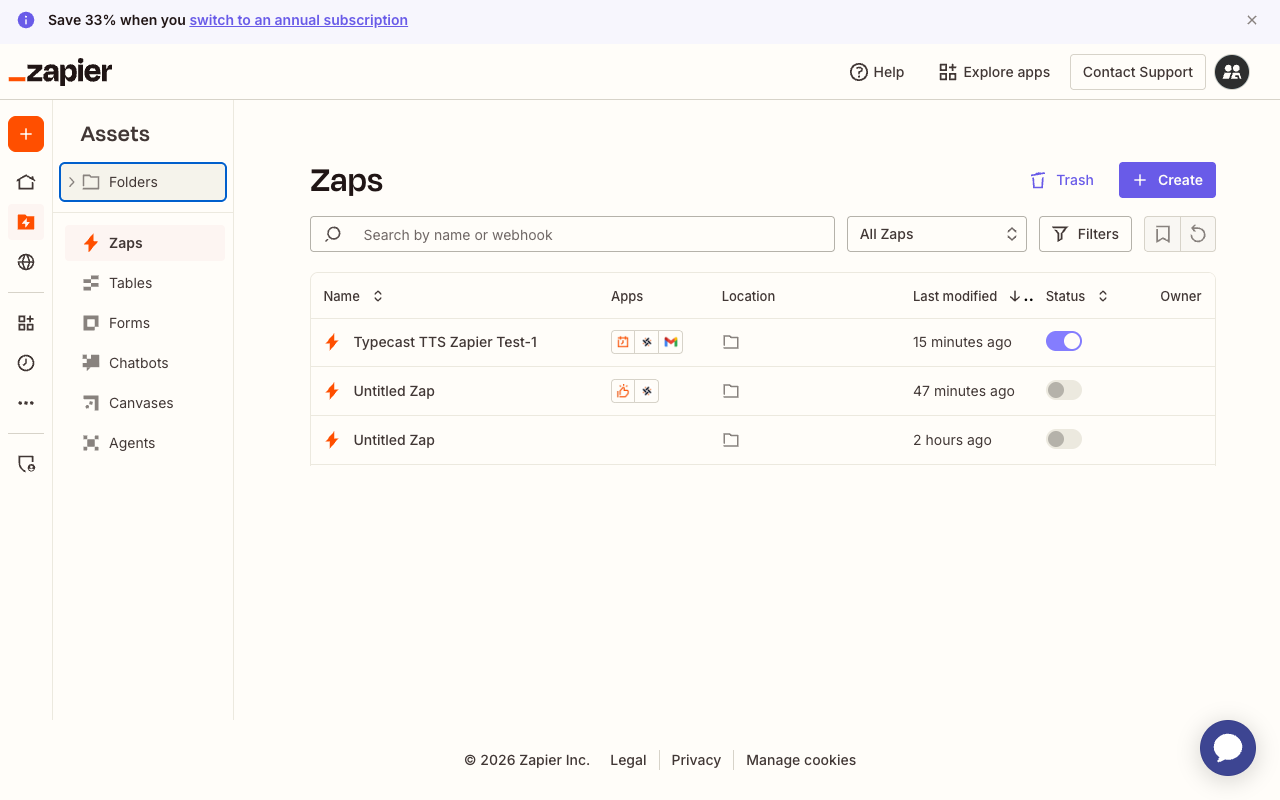
### Step 1: Create a New Zap
1. Go to [Zapier Dashboard](https://zapier.com/app/assets/zaps)
2. Click **\+ Create** → **New Zap**
### Step 2: Set Up the Trigger
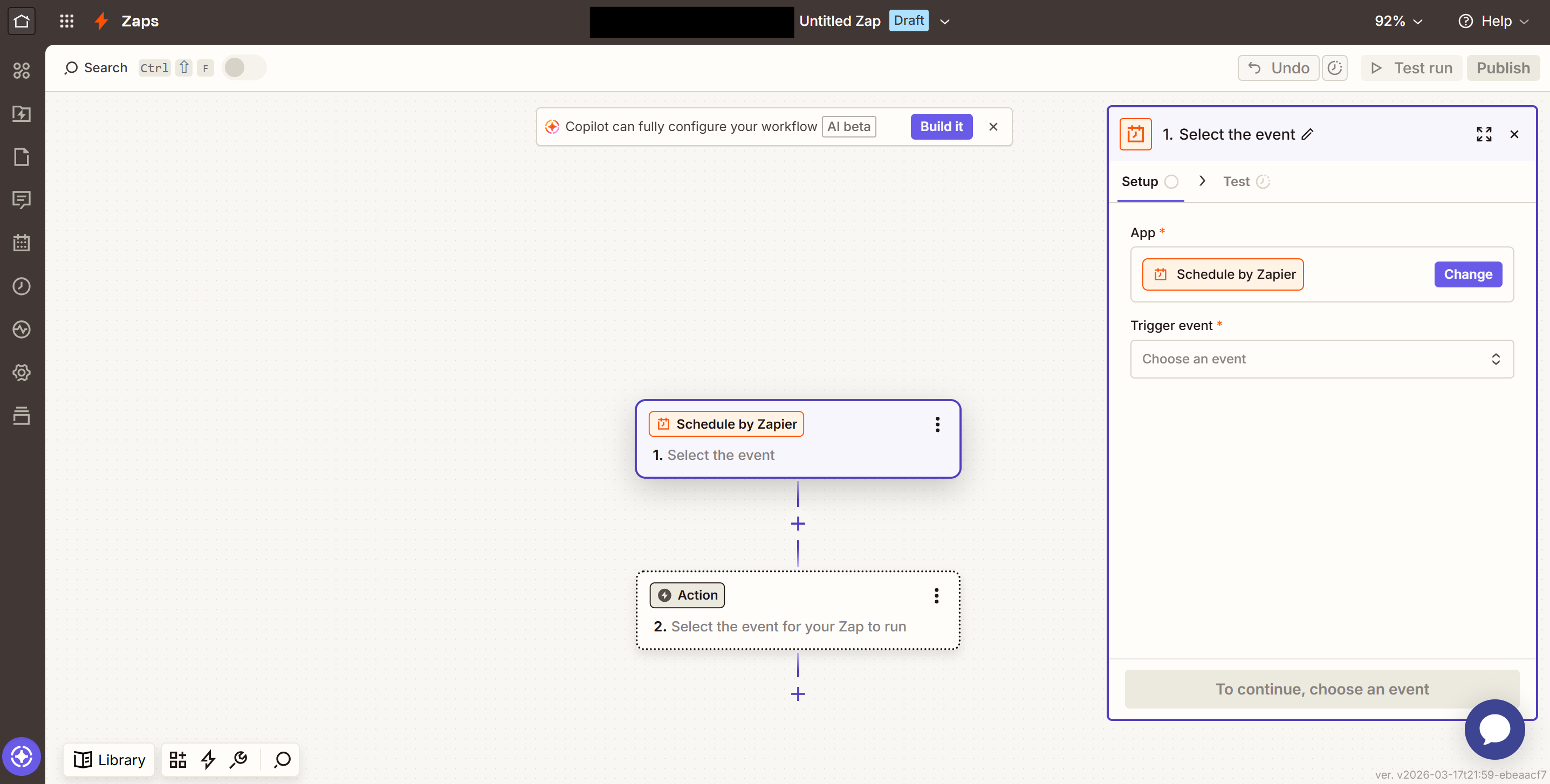
For this example, we'll use a Schedule trigger:
1. Click on the **Trigger** step
2. Search for **Schedule** and select it
3. Choose **Every Hour** as the event
4. Click **Continue** and **Test trigger**
### Step 3: Add Typecast Action
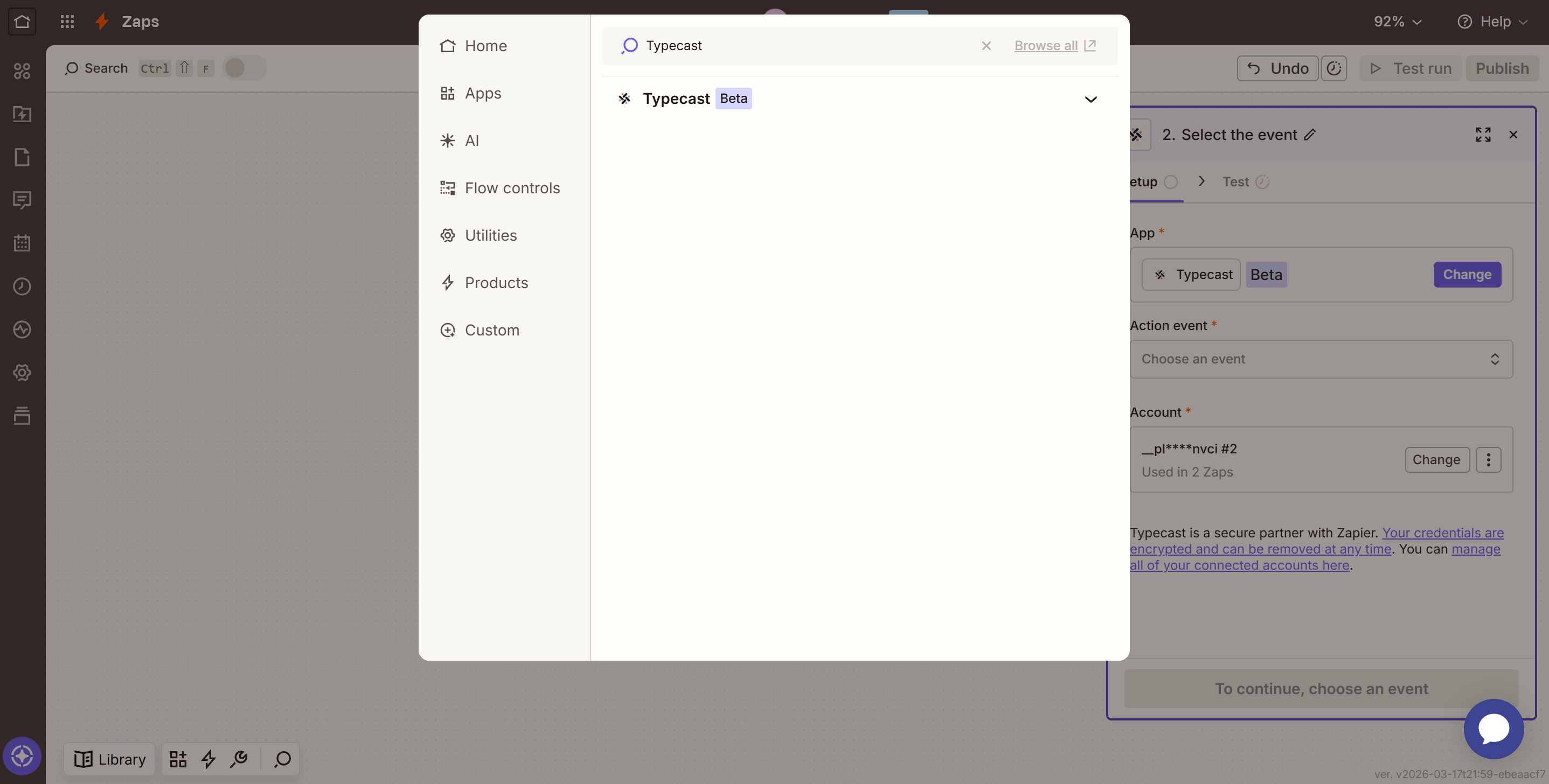
1. Click on the **Action** step
2. Search for **Typecast**
3. Select **Typecast**
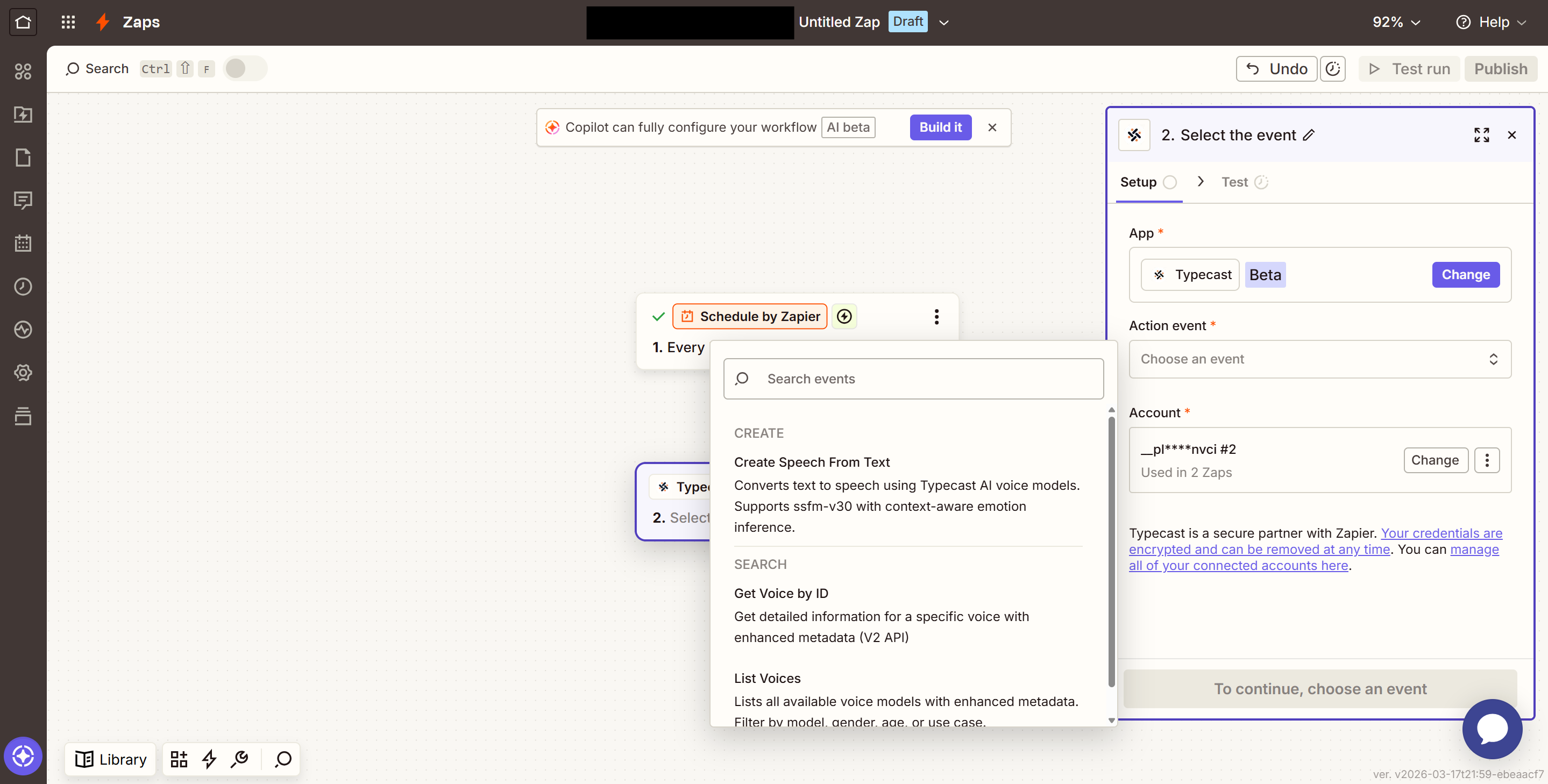
4. Choose **Create Speech From Text** as the event
### Step 4: Configure Text to Speech
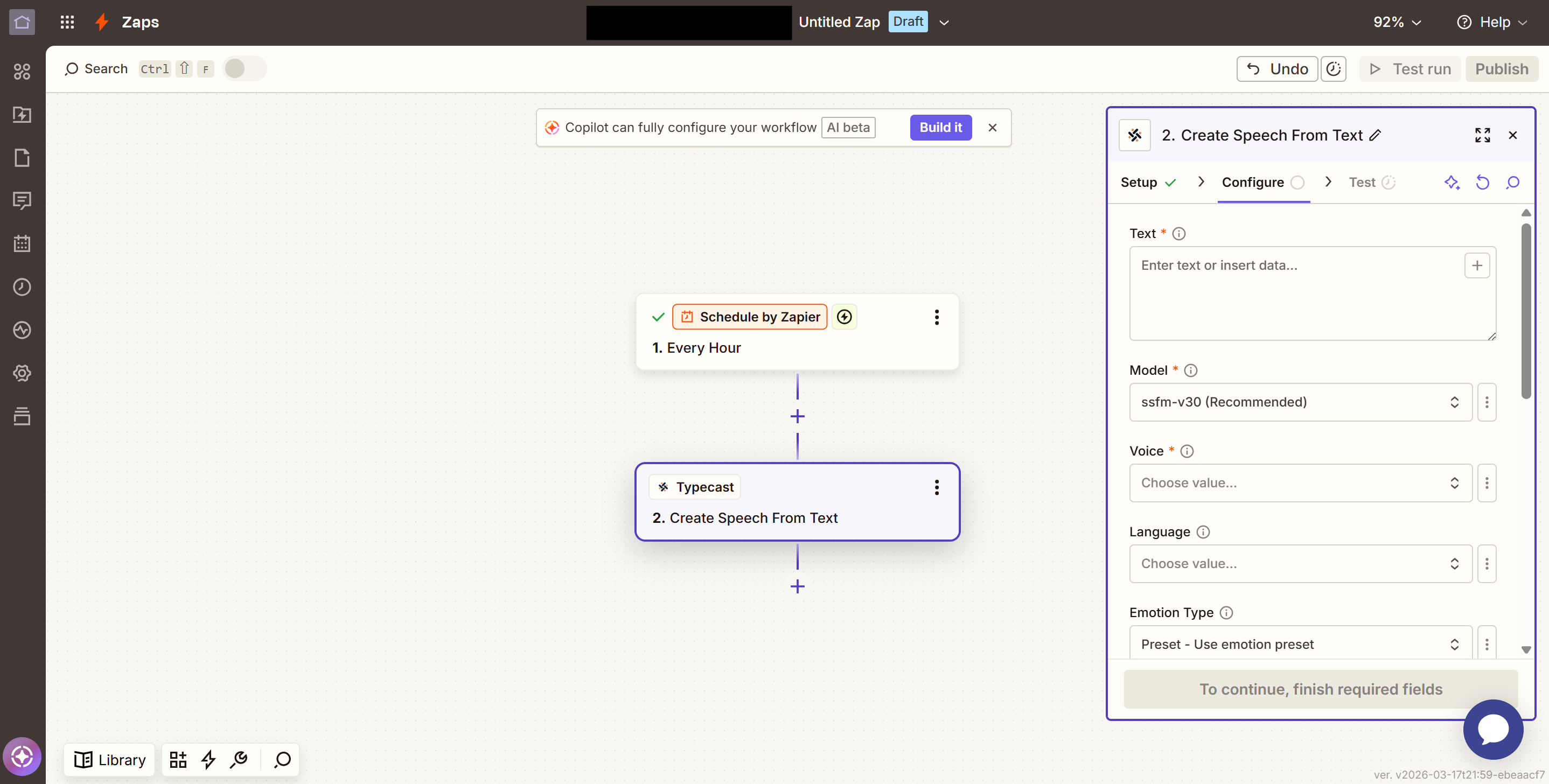
| Setting | What to Enter |
| --- | --- |
| **Text** | Your text to convert (required) |
| **Model** | `ssfm-v30 (Recommended)` - latest model with best quality |
| **Voice** | Select from the dropdown (required) |
| **Language** | Auto-detected, or select manually |
| **Emotion Type** | `Preset` or `Smart` (v30 only) |
| **Emotion Preset** | Normal, Happy, Sad, Angry, Whisper, etc. |
### Step 5: Test and Publish
1. Click **Continue** to go to the Test step
2. Click **Test step** to generate sample audio
3. If successful, click **Publish** to activate your Zap
The generated audio URL will be available as output data. You can use it in subsequent steps to send via email, upload to cloud storage, or post to Slack.
---
## Available Actions
### Create Speech From Text
Converts text to speech using Typecast AI voice models.
**Inputs:**
| Field | Required | Description |
| --- | --- | --- |
| Text | Yes | Text to convert (max 2000 characters) |
| Model | Yes | `ssfm-v30` (recommended) or `ssfm-v21` |
| Voice | Yes | Select from 600\+ available voices |
| Language | No | ISO 639-3 code (auto-detected if not set) |
| Emotion Type | No | `Preset` or `Smart` (context-aware, v30 only) |
| Emotion Preset | No | Normal, Happy, Sad, Angry, Whisper, Tone Up, Tone Down |
| Emotion Intensity | No | 0.0 to 2.0 (default: 1.0) |
| Volume | No | 0 to 200 (default: 100) |
| Audio Pitch | No | -12 to \+12 semitones (default: 0) |
| Audio Tempo | No | 0.5x to 2.0x speed (default: 1.0) |
| Audio Format | No | WAV or MP3 |
**Outputs:**
- Audio File URL
- Speech ID
- Duration (seconds)
- Content Type
### List Voices (Search)
Lists all available voice models with enhanced metadata.
**Filters:**
- Model (ssfm-v30, ssfm-v21)
- Gender (Male, Female)
- Age (Child, Teenager, Young Adult, Middle Age, Elder)
- Use Cases (Audiobook, Podcast, E-learning, etc.)
### Get Voice by ID (Search)
Get detailed information for a specific voice including supported emotions per model.
### Recommend Voices (Search)
Find voice candidates from a text description.
**Inputs:**
| Field | Required | Description |
| --- | --- | --- |
| Query | Yes | Text describing the desired style, mood, language, use case, or content context |
| Count | No | Number of recommendations to return (1-10, default: 5) |
**Outputs:**
- Voice ID
- Voice Name
- Score
The recommendation response contains only `voice_id`, `voice_name`, and `score`; use List Voices or Get Voice by ID when a Zap needs detailed metadata before synthesis.
---
## Emotion Settings
Make your voice expressive with emotion controls!
### For SSFM-V30 (Latest Model)
Two ways to add emotion:
AI automatically detects the best emotion from your text context. Perfect for natural conversations and storytelling.
Add "Previous Text" and "Next Text" for better context understanding.
Manually choose from 7 emotions: Normal, Happy, Sad, Angry, Whisper, Tone Up, Tone Down.
### For SSFM-V21
Choose from 4 emotions: `Normal`, `Happy`, `Sad`, `Angry`
Adjust **Emotion Intensity** (0.0 - 2.0):
- `0.0` - Completely neutral
- `1.0` - Standard (default)
- `2.0` - Maximum intensity
---
## Example Use Cases
1. **Trigger**: RSS feed with new articles
2. **Action**: Typecast creates audio from article summary
3. **Action**: Upload to podcast hosting platform
1. **Trigger**: New support ticket
2. **Action**: AI generates response text
3. **Action**: Typecast converts to voice message
4. **Action**: Send via email or SMS
1. **Trigger**: New lesson content in Google Sheets
2. **Action**: Typecast generates narration
3. **Action**: Upload to Google Drive
4. **Action**: Notify team via Slack
---
## Troubleshooting
Search for "Typecast" in the Zapier app directory. Make sure you're using the latest available version.
- Check your API key is correct
- Verify your key at [Typecast API Console](https://studio.typecast.ai/developers/api/)
- Make sure there are no extra spaces in the key
- Check your API key has proper permissions
- Try refreshing the field by clicking the refresh icon
- Check that your text is not empty
- Verify you have sufficient API credits
- Check the error message in the test output
---
## Resources
Browse all available voices
Explore the Typecast API
Zapier documentation and support
## Control silence duration
In Typecast **2.2.7 or later**, set **Remaining Silence (ms)** in standard, streaming, or timestamp speech actions. The input key is `remove_silence_ms`; leave it blank to disable processing.
`remove_silence_ms` specifies the **silence duration to retain**, not the amount to remove. Use an integer from `0` to `1000` ms. `0` removes detected silence; omission or `null` disables duration-based silence removal.
Standard, streaming, and timestamp TTS use `output.remove_silence_ms`; Compose uses `segments[].output.remove_silence_ms` on each `tts` segment. Returned timestamps align with the processed audio, and explicit `pause` segments are preserved.
Streaming's default leading-silence trimming is separate. Small values such as `0` can leave gaps between playable chunks; allow sufficient playback buffering and test with your content.