> ## Documentation Index
> Fetch the complete documentation index at: https://typecast.ai/docs/llms.txt
> Use this file to discover all available pages before exploring further.
# Make
[Make](https://www.make.com/) is a powerful visual workflow automation platform. With the Typecast integration, you can convert text to speech automatically - no coding required!
## What You Can Do
With the Typecast Make integration, you can:
- **Generate voiceovers** from any text automatically
- **Choose from 600+ voices** with different genders, ages, and styles
- **Apply emotions** (happy, sad, angry, whisper, and more)
- **Use Smart Emotion** for context-aware voice synthesis (ssfm-v30)
- **Filter voices** by gender, age group, and use case
- **Connect to 1500+ apps** - send audio via email, save to cloud storage, post to Slack, etc.
---
## Prerequisites
Before you start, make sure you have:
1. **Make account** - [Sign up here](https://www.make.com/en/register) if you don't have one
2. **Typecast API Key** - [Get yours here](https://studio.typecast.ai/developers/api/)
3. **Invite link access** - [Accept the invite](https://www.make.com/en/hq/app-invitation/19c62bf73b6afd22b41a2318e3f0a57e)
---
## Installation
### Step 1: Accept the Invite
Since Typecast is currently in private beta, you need to accept the invite first:
1. Click the **[invite link](https://www.make.com/en/hq/app-invitation/19c62bf73b6afd22b41a2318e3f0a57e)**
2. Log in to your Make account (or create one)
3. Click **Install** to add Typecast to your apps
### Step 2: Connect Your Typecast Account
When you first use Typecast in a scenario:
1. Click **Create a connection**
2. Enter a name for your connection (e.g., "My Typecast")
3. Enter your **Typecast API Key**
4. Click **Save**
You can get your API key from the [Typecast API Console](https://studio.typecast.ai/developers/api/).
---
## Quick Start: Your First Voice Generation
Let's create a simple scenario that generates speech!
### Step 1: Create a New Scenario
1. Go to [Make Dashboard](https://www.make.com/)
2. Click **+ Create a new scenario**
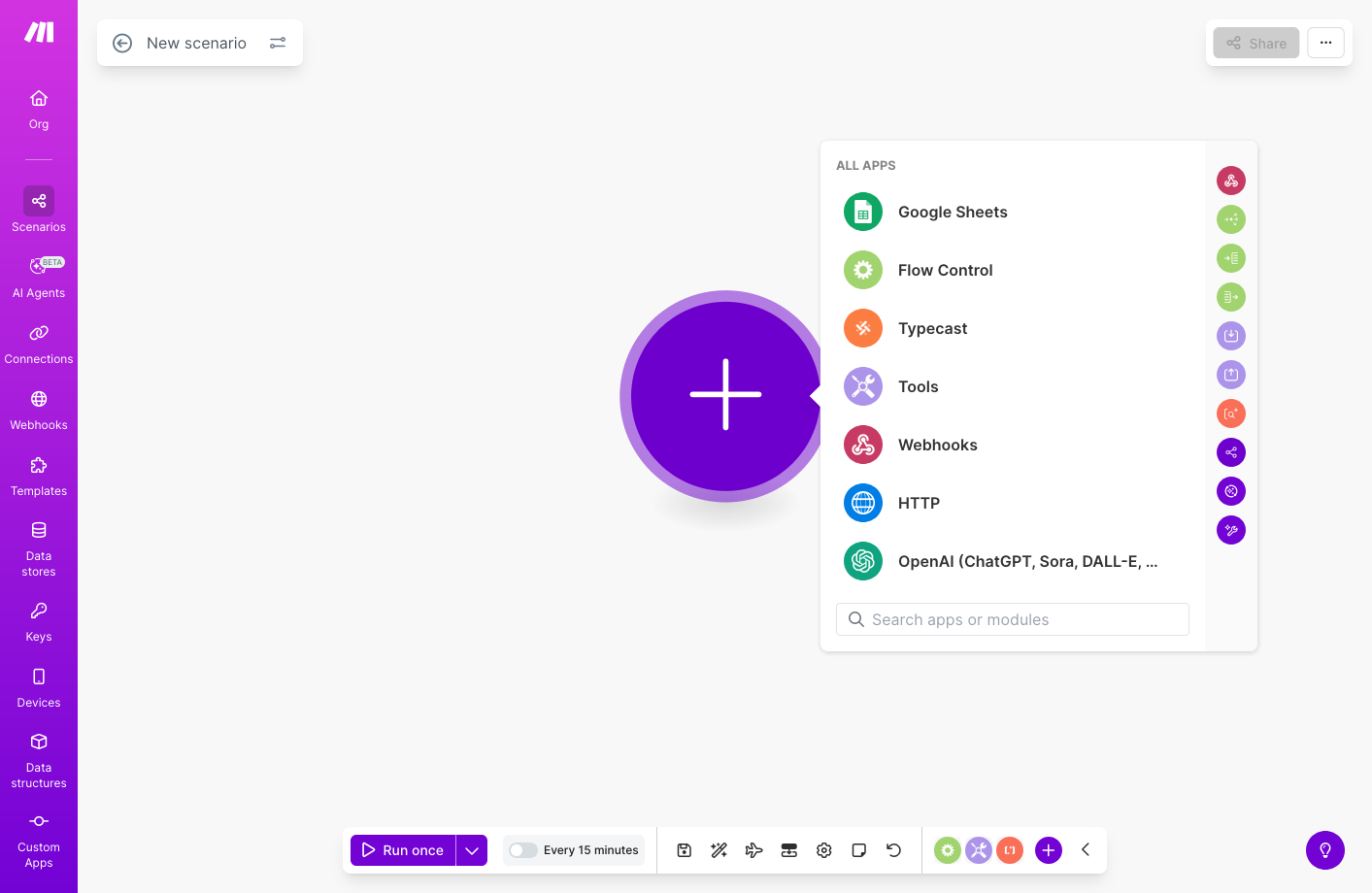
### Step 2: Add Typecast Module
1. Click the **+** button to add a module
2. Search for **Typecast**
3. Select **Typecast** from the results
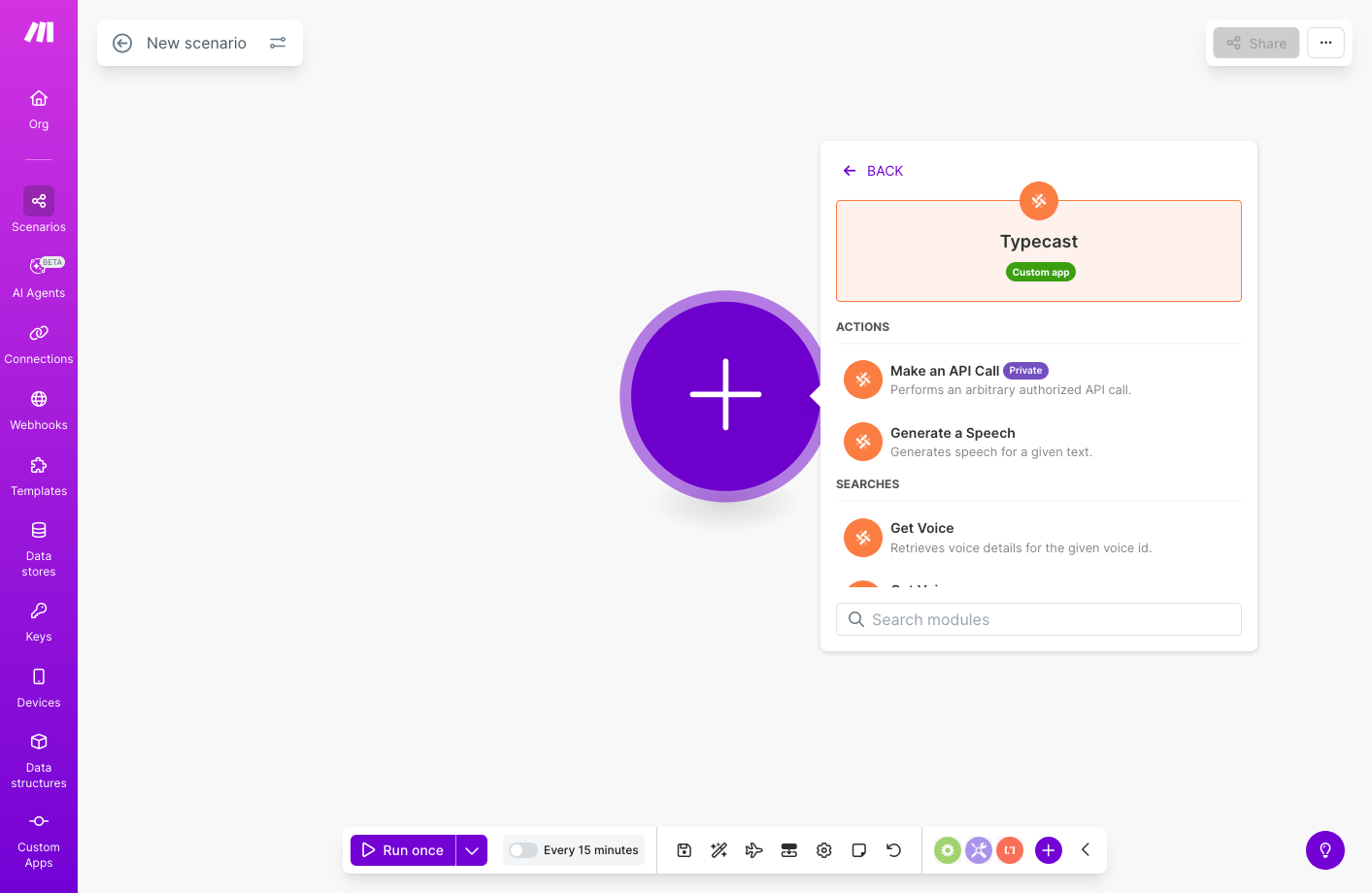
 ### Step 3: Select Action
Choose **Generate a Speech** from the available actions.
### Step 3: Select Action
Choose **Generate a Speech** from the available actions.
 ### Step 4: Configure Text to Speech
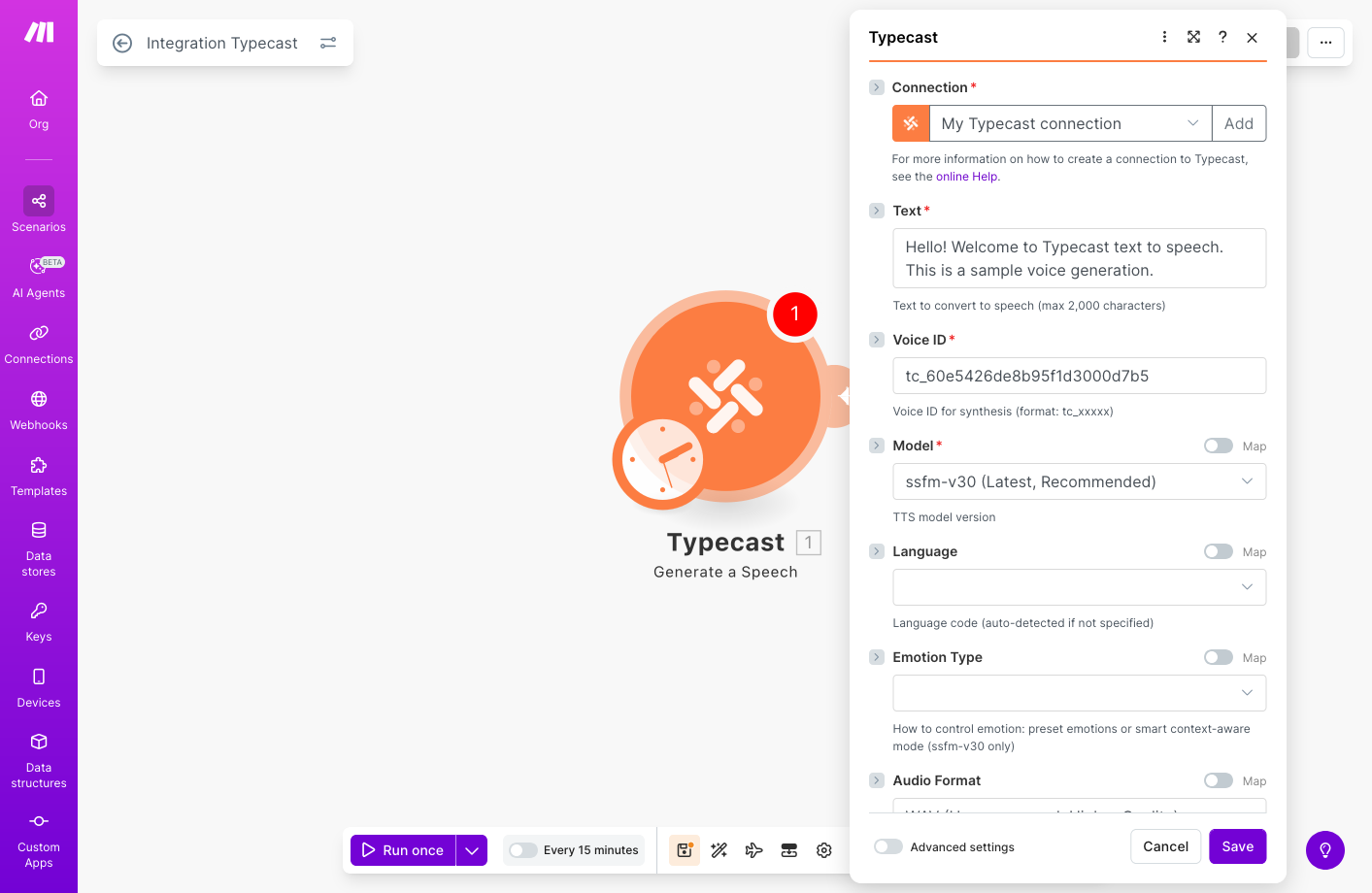 | Setting | What to Enter |
|---------|---------------|
| **Text** | Your text to convert (required) |
| **Voice ID** | Enter a voice ID (e.g., `tc_60e5426de8b95f1d3000d7b5`) |
| **Model** | `ssfm-v30` - latest model with best quality |
| **Language** | Auto-detected, or select manually |
| **Emotion Type** | `Preset` or `Smart` (ssfm-v30 only) |
Use the **Get Voices** module first to find available Voice IDs. You can filter by gender, age, and use case!
### Step 5: Test and Activate
1. Click **OK** to save the module configuration
2. Click **Run once** to test your scenario
3. If successful, toggle the scenario to **ON** to activate it
The generated audio will be returned as binary data (WAV or MP3). You can use it in subsequent modules to send via email, upload to cloud storage, or process further.
---
## Available Modules
### Generate a Speech (Action)
Converts text to speech using Typecast AI voice models.
**Inputs:**
| Field | Required | Description |
|-------|----------|-------------|
| Text | Yes | Text to convert (max 2000 characters) |
| Voice ID | Yes | Voice identifier (format: `tc_xxxxx`) |
| Model | Yes | `ssfm-v30` (recommended) or `ssfm-v21` |
| Language | No | ISO 639-3 code (auto-detected if not set) |
| Emotion Type | No | `Preset` or `Smart` (context-aware, ssfm-v30 only) |
| Emotion Preset | No | Normal, Happy, Sad, Angry, Whisper, Tone Up, Tone Down |
| Emotion Intensity | No | 0.0 to 2.0 (default: 1.0) |
| Target LUFS | No | -70 to 0 (e.g. -14 for streaming, -23 for broadcast) |
| Pitch | No | -12 to +12 semitones (default: 0) |
| Tempo | No | 0.5x to 2.0x speed (default: 1.0) |
| Audio Format | No | WAV or MP3 |
**Outputs:**
- Audio file (binary data)
- File name
### Get Voices (Search)
Lists all available voice models with filtering options.
**Filters:**
| Field | Description |
|-------|-------------|
| Model | Filter by `ssfm-v30` or `ssfm-v21` |
| Gender | Male or Female |
| Age | Child, Teenager, Young Adult, Middle Age, Elder |
| Use Cases | Audiobook, Podcast, E-learning, Ads, Game, etc. |
| Limit | Maximum number of results |
**Output (per voice):**
- Voice ID
- Voice Name
- Supported Models and Emotions
- Gender and Age Group
- Recommended Use Cases
---
## Finding the Right Voice
To find the perfect voice for your project:
Add the **Get Voices** module to your scenario
Filter by gender, age group, and use case to narrow down options
From the results, copy the `voice_id` you want to use
Paste the Voice ID into the **Generate a Speech** module
---
## Emotion Settings
Make your voice expressive with emotion controls!
### For ssfm-v30 (Latest Model)
Two ways to add emotion:
AI automatically detects the best emotion from your text context. Perfect for natural conversations and storytelling.
Add "Previous Text" and "Next Text" for better context understanding.
Manually choose from 7 emotions: Normal, Happy, Sad, Angry, Whisper, Tone Up, Tone Down.
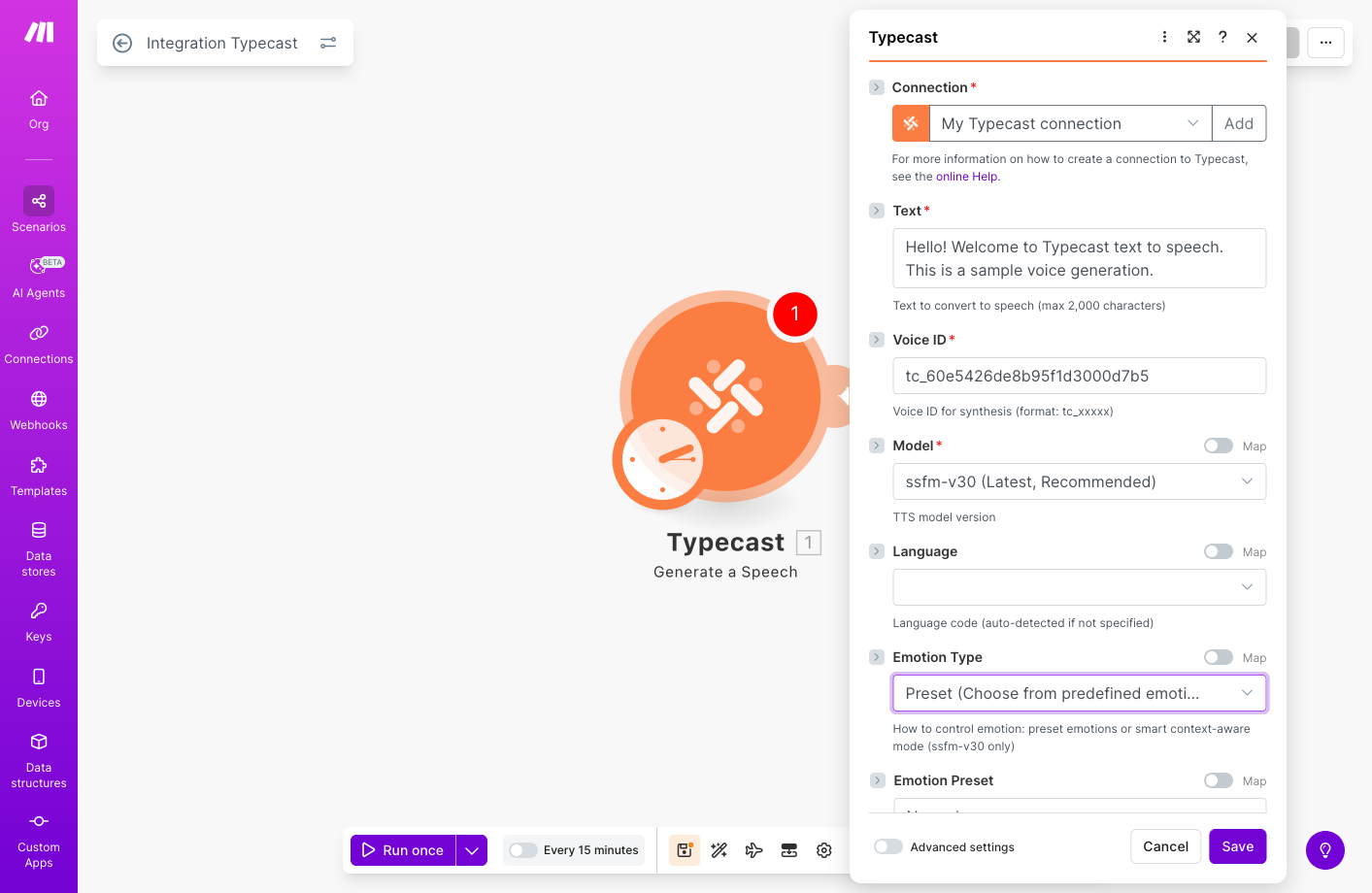
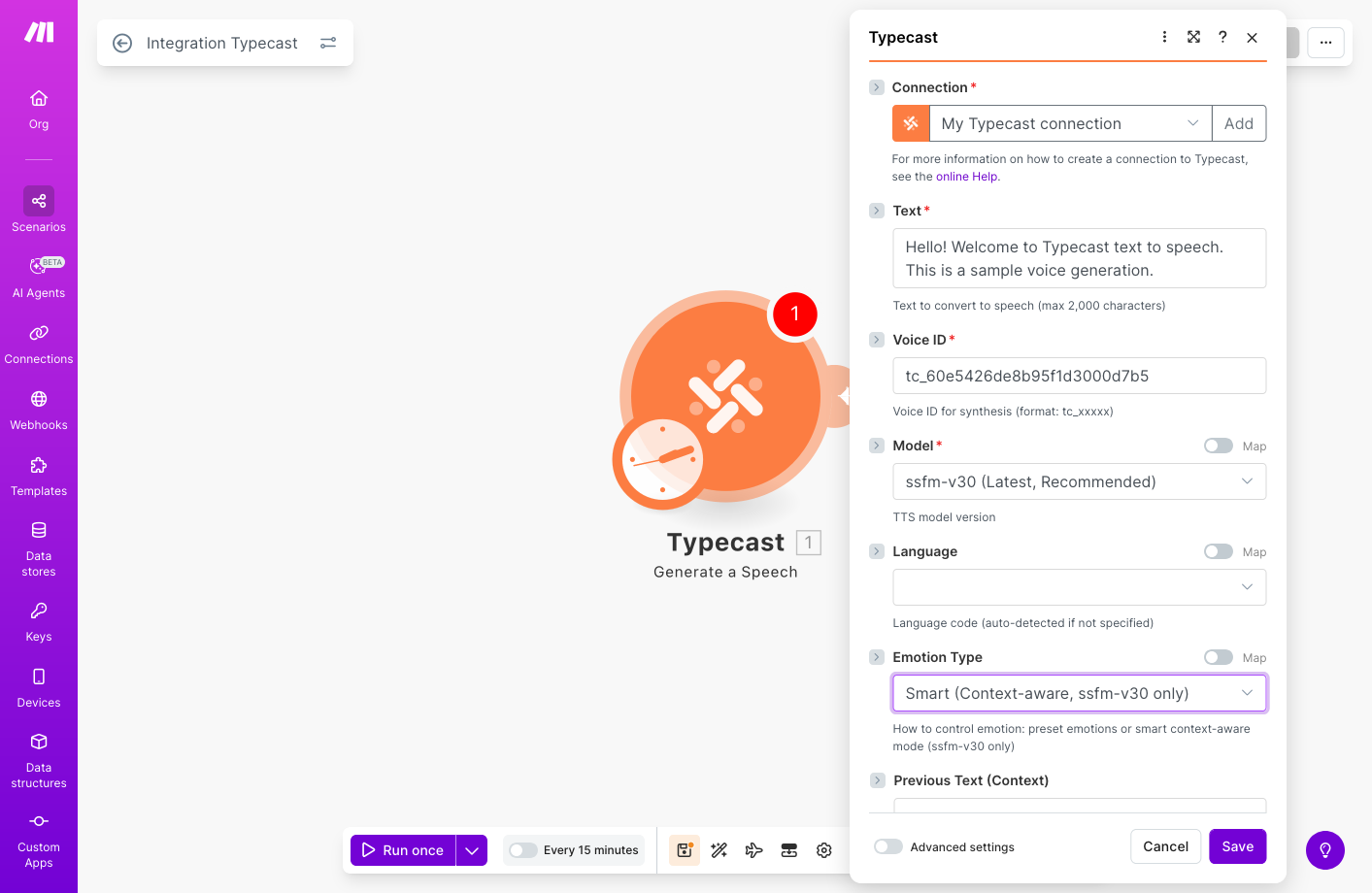
When you select an **Emotion Type**, additional fields appear dynamically:
- **Preset**: Shows "Emotion Preset" dropdown and "Emotion Intensity" slider
- **Smart**: Shows "Previous Text" and "Next Text" context fields
| Setting | What to Enter |
|---------|---------------|
| **Text** | Your text to convert (required) |
| **Voice ID** | Enter a voice ID (e.g., `tc_60e5426de8b95f1d3000d7b5`) |
| **Model** | `ssfm-v30` - latest model with best quality |
| **Language** | Auto-detected, or select manually |
| **Emotion Type** | `Preset` or `Smart` (ssfm-v30 only) |
Use the **Get Voices** module first to find available Voice IDs. You can filter by gender, age, and use case!
### Step 5: Test and Activate
1. Click **OK** to save the module configuration
2. Click **Run once** to test your scenario
3. If successful, toggle the scenario to **ON** to activate it
The generated audio will be returned as binary data (WAV or MP3). You can use it in subsequent modules to send via email, upload to cloud storage, or process further.
---
## Available Modules
### Generate a Speech (Action)
Converts text to speech using Typecast AI voice models.
**Inputs:**
| Field | Required | Description |
|-------|----------|-------------|
| Text | Yes | Text to convert (max 2000 characters) |
| Voice ID | Yes | Voice identifier (format: `tc_xxxxx`) |
| Model | Yes | `ssfm-v30` (recommended) or `ssfm-v21` |
| Language | No | ISO 639-3 code (auto-detected if not set) |
| Emotion Type | No | `Preset` or `Smart` (context-aware, ssfm-v30 only) |
| Emotion Preset | No | Normal, Happy, Sad, Angry, Whisper, Tone Up, Tone Down |
| Emotion Intensity | No | 0.0 to 2.0 (default: 1.0) |
| Target LUFS | No | -70 to 0 (e.g. -14 for streaming, -23 for broadcast) |
| Pitch | No | -12 to +12 semitones (default: 0) |
| Tempo | No | 0.5x to 2.0x speed (default: 1.0) |
| Audio Format | No | WAV or MP3 |
**Outputs:**
- Audio file (binary data)
- File name
### Get Voices (Search)
Lists all available voice models with filtering options.
**Filters:**
| Field | Description |
|-------|-------------|
| Model | Filter by `ssfm-v30` or `ssfm-v21` |
| Gender | Male or Female |
| Age | Child, Teenager, Young Adult, Middle Age, Elder |
| Use Cases | Audiobook, Podcast, E-learning, Ads, Game, etc. |
| Limit | Maximum number of results |
**Output (per voice):**
- Voice ID
- Voice Name
- Supported Models and Emotions
- Gender and Age Group
- Recommended Use Cases
---
## Finding the Right Voice
To find the perfect voice for your project:
Add the **Get Voices** module to your scenario
Filter by gender, age group, and use case to narrow down options
From the results, copy the `voice_id` you want to use
Paste the Voice ID into the **Generate a Speech** module
---
## Emotion Settings
Make your voice expressive with emotion controls!
### For ssfm-v30 (Latest Model)
Two ways to add emotion:
AI automatically detects the best emotion from your text context. Perfect for natural conversations and storytelling.
Add "Previous Text" and "Next Text" for better context understanding.
Manually choose from 7 emotions: Normal, Happy, Sad, Angry, Whisper, Tone Up, Tone Down.
When you select an **Emotion Type**, additional fields appear dynamically:
- **Preset**: Shows "Emotion Preset" dropdown and "Emotion Intensity" slider
- **Smart**: Shows "Previous Text" and "Next Text" context fields
 ### For ssfm-v21
Choose from 4 emotions: `Normal`, `Happy`, `Sad`, `Angry`
Adjust **Emotion Intensity** (0.0 - 2.0):
- `0.0` - Completely neutral
- `1.0` - Standard (default)
- `2.0` - Maximum intensity
---
## Model Comparison
| Feature | ssfm-v21 | ssfm-v30 |
|---------|----------|----------|
| Emotions | 4 types | 7 types |
| Languages | 27 | 35+ |
| Smart Mode | No | Yes |
| Quality | Stable | Enhanced |
| Recommendation | Production | Latest Features |
---
## Example Use Cases
1. **Trigger**: New row added in Google Sheets
2. **Action**: Typecast generates voiceover from script text
3. **Action**: Upload audio to Google Drive
4. **Action**: Notify team via Slack
1. **Trigger**: New content in CMS
2. **Action**: Translate text with DeepL or Google Translate
3. **Action**: Typecast creates audio in each language
4. **Action**: Save to cloud storage organized by language
1. **Trigger**: New lesson module approved
2. **Action**: Typecast generates professional narration
3. **Action**: Upload to LMS (Teachable, Thinkific, etc.)
4. **Action**: Update course status in Airtable
1. **Trigger**: Scheduled daily at 6 AM
2. **Action**: Fetch latest news headlines
3. **Action**: Typecast creates intro with energetic voice
4. **Action**: Append to podcast audio file
---
## Advanced: Working with Audio Output
The **Generate a Speech** module outputs audio as binary data. Here's how to use it:
### Save to Cloud Storage
Connect a **Google Drive**, **Dropbox**, or **OneDrive** module after Typecast:
- Map the audio data to the file content
- Set filename with `.wav` or `.mp3` extension based on your Audio Format setting
### Send via Email
Use **Gmail** or **SMTP** module:
- Add the audio as an attachment
- Map the file data and set the correct MIME type (`audio/wav` or `audio/mpeg`)
### Process Further
Use **HTTP** module to:
- Upload to a custom server
- Send to a video editing API
- Store in your own database
---
## Troubleshooting
Make sure you've accepted the [invite link](https://www.make.com/en/hq/app-invitation/19c62bf73b6afd22b41a2318e3f0a57e) first. Typecast is currently in private beta.
- Check your API key is correct
- Verify your key at [Typecast API Console](https://studio.typecast.ai/developers/api/)
- Make sure there are no extra spaces in the key
- Voice IDs must start with `tc_` prefix
- Use the **Get Voices** module to find valid Voice IDs
- Make sure the voice supports your selected model
- Check that your text is not empty
- Verify you have sufficient API credits
- Check if the text exceeds 2000 characters
- Smart Emotion is only available with `ssfm-v30` model
- Make sure you've selected "Smart" as the Emotion Type
- Provide context in Previous Text and/or Next Text fields
- Try switching between WAV and MP3 formats
- Adjust Target LUFS, Pitch, and Tempo settings
- Use a different voice that better suits your content
---
## Supported Languages
Typecast supports 35+ languages with the ssfm-v30 model:
English, Korean, Japanese, Chinese, Spanish, French, German, Portuguese
Bulgarian, Croatian, Czech, Danish, Dutch, Finnish, Greek, Hungarian, Italian, Norwegian, Polish, Romanian, Russian, Slovak, Swedish, Turkish, Ukrainian
Arabic, Bengali, Cantonese, Hindi, Indonesian, Malay, Min Nan, Punjabi, Tagalog, Tamil, Thai, Vietnamese
---
## Resources
Accept the invite to use Typecast
Browse all available voices
Explore the Typecast API
Make documentation and support
### For ssfm-v21
Choose from 4 emotions: `Normal`, `Happy`, `Sad`, `Angry`
Adjust **Emotion Intensity** (0.0 - 2.0):
- `0.0` - Completely neutral
- `1.0` - Standard (default)
- `2.0` - Maximum intensity
---
## Model Comparison
| Feature | ssfm-v21 | ssfm-v30 |
|---------|----------|----------|
| Emotions | 4 types | 7 types |
| Languages | 27 | 35+ |
| Smart Mode | No | Yes |
| Quality | Stable | Enhanced |
| Recommendation | Production | Latest Features |
---
## Example Use Cases
1. **Trigger**: New row added in Google Sheets
2. **Action**: Typecast generates voiceover from script text
3. **Action**: Upload audio to Google Drive
4. **Action**: Notify team via Slack
1. **Trigger**: New content in CMS
2. **Action**: Translate text with DeepL or Google Translate
3. **Action**: Typecast creates audio in each language
4. **Action**: Save to cloud storage organized by language
1. **Trigger**: New lesson module approved
2. **Action**: Typecast generates professional narration
3. **Action**: Upload to LMS (Teachable, Thinkific, etc.)
4. **Action**: Update course status in Airtable
1. **Trigger**: Scheduled daily at 6 AM
2. **Action**: Fetch latest news headlines
3. **Action**: Typecast creates intro with energetic voice
4. **Action**: Append to podcast audio file
---
## Advanced: Working with Audio Output
The **Generate a Speech** module outputs audio as binary data. Here's how to use it:
### Save to Cloud Storage
Connect a **Google Drive**, **Dropbox**, or **OneDrive** module after Typecast:
- Map the audio data to the file content
- Set filename with `.wav` or `.mp3` extension based on your Audio Format setting
### Send via Email
Use **Gmail** or **SMTP** module:
- Add the audio as an attachment
- Map the file data and set the correct MIME type (`audio/wav` or `audio/mpeg`)
### Process Further
Use **HTTP** module to:
- Upload to a custom server
- Send to a video editing API
- Store in your own database
---
## Troubleshooting
Make sure you've accepted the [invite link](https://www.make.com/en/hq/app-invitation/19c62bf73b6afd22b41a2318e3f0a57e) first. Typecast is currently in private beta.
- Check your API key is correct
- Verify your key at [Typecast API Console](https://studio.typecast.ai/developers/api/)
- Make sure there are no extra spaces in the key
- Voice IDs must start with `tc_` prefix
- Use the **Get Voices** module to find valid Voice IDs
- Make sure the voice supports your selected model
- Check that your text is not empty
- Verify you have sufficient API credits
- Check if the text exceeds 2000 characters
- Smart Emotion is only available with `ssfm-v30` model
- Make sure you've selected "Smart" as the Emotion Type
- Provide context in Previous Text and/or Next Text fields
- Try switching between WAV and MP3 formats
- Adjust Target LUFS, Pitch, and Tempo settings
- Use a different voice that better suits your content
---
## Supported Languages
Typecast supports 35+ languages with the ssfm-v30 model:
English, Korean, Japanese, Chinese, Spanish, French, German, Portuguese
Bulgarian, Croatian, Czech, Danish, Dutch, Finnish, Greek, Hungarian, Italian, Norwegian, Polish, Romanian, Russian, Slovak, Swedish, Turkish, Ukrainian
Arabic, Bengali, Cantonese, Hindi, Indonesian, Malay, Min Nan, Punjabi, Tagalog, Tamil, Thai, Vietnamese
---
## Resources
Accept the invite to use Typecast
Browse all available voices
Explore the Typecast API
Make documentation and support